


Deploying printers via group policy using the Print Management console, if your not installed Print Management then Install Print Management by adding or updating the print server role through Manage Your Server
Deploying printers through GPO
o Open the Print Management console and select the printer you want to install.
o In the results pane, right-click the printer you want to install, then click Deploy with Group Policy
o Click Browse, and then choose a GPO (through which you going to deploy the printer)
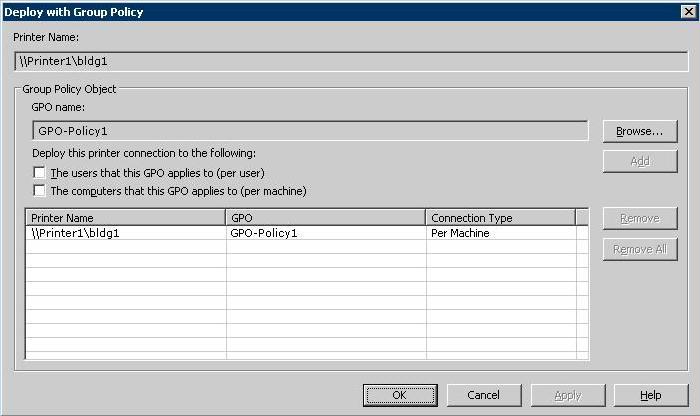
o If you want to deploy this printer for user or computer select the appropriate option
o Select The users that this GPO applies to (per user)
o Select The computers that this GPO applies to (per machine).
o Click Add
To complete printer deployment on the client we have to deploy a PushPrinterConnections.exe to the client computer so that the client can process the printer connection settings through GPO
Deploy PushPrinterConnections.exe file
We have added PushPrinterConnections.exe to login script on GPO so that it will be deployed while the time of user login
o Open a Gpmc.msc, right-click the GPO with your printer connections settings and click Edit, Add PushPrinterConnections.exe file
o For per-machine, go to Computer Configuration, Windows Settings, Scripts (Startup/Shutdown).
o For per-user, go to User Configuration, Windows Settings, Scripts (Logon/Logoff).
Ask the user to log off and logon, the printer will get installed automatically through GPO, for per-machine ask the user to restart the computer in order to apply updated GPO.
Related posts:
 Deploy and distribute new Print Queue to all Workstations through Group Policy on Windows Server 2012
 Group policy is not applying/working after patching (GPO Permission issues)
 SYSVOL Folder Structure and location
 Loopback policy
PowerShell command to extract Group policy result for a list of Servers
Loopback policy
PowerShell command to extract Group policy result for a list of Servers

